In this guide
Moving from spreadsheets to an ERP involves more than uploading a customer list. Your team needs to know that an order still belongs to the right customer, its quantities mean the same thing and any money outstanding has been carried forward correctly.
A successful import message cannot answer all of those questions. You need a plan for checking the information and for continuing daily work while it moves.
This checklist is for suppliers, retailers and small operations teams preparing to move from Excel or Google Sheets into business software. ERP means enterprise resource planning: software that connects business records and processes. The checklist applies to configured ERP products and focused custom systems. If you are still deciding whether you need an ERP, start with our guide to choosing the right ERP scope.
Before switching, you should be able to show which records will move, evidence that a trial import works and a plan for handling new transactions during the changeover. If any of those is missing, resolve it before setting a final launch date.
1. Choose one workflow and name its owner
Start with the work you want the new system to handle. For a supplier, that might be an enquiry becoming a quotation, an order and a delivery. For a print business, it might be an order moving through production and courier collection.
List the files people actually use for that workflow. Include the separate customer sheet, the price workbook and any document template staff copy for each job. Ask which file wins when two versions disagree.
Give each group of records a business owner who can approve corrections. A developer can flag two different addresses for one customer. Someone who knows that customer needs to decide which address to use.
Write down the first release boundary. A quotation tool does not automatically need payroll, every historical invoice or a full accounting migration.
2. Decide what to import and what to archive
Put records into three groups: needed for current work, needed for reference and no longer needed in the new application. Review the last group before excluding anything.
| Record group | A possible approach | Decision to make |
|---|---|---|
| Active customers, suppliers and products | Import as working records | Which codes and details are approved? |
| Open quotations and unfulfilled orders | Import where staff must continue the work | Which lines, revisions and statuses are still active? |
| Outstanding invoices or courier collections | Carry forward through the agreed process | Who approves the amounts and references? |
| Completed historical jobs | Keep in a searchable archive unless needed in the ERP | How will staff find a past document? |
| Cancelled, duplicate or incomplete records | Review separately | What should be excluded, corrected or retained? |
These are planning choices, not a rule to discard history. Agree access, retention and reporting needs before deciding what stays outside the ERP.
Check the proposed archive in practice. Ask a member of staff to find a past order and its supporting document. An archive that nobody can search will create extra work after launch.
3. Clean records without losing their identity
A customer name is a weak identifier. Spelling changes, abbreviations and branch names can make one business look like several. Two unrelated customers can also have similar names.
Assign a stable source reference to each record and preserve it through the move. Where the old files have no reliable codes, agree new ones and keep a mapping back to the original rows. Do not regenerate those references every time someone sorts the spreadsheet.
Odoo’s import documentation explains how consistent external identifiers support record updates and relationships. Its exact fields are product specific. For another ERP, confirm the equivalent rule with the implementer before importing again.
Review duplicates with the business owner. Keep a record of which source references were merged into the approved customer or product. Avoid merging customers solely because their names look alike.
Check product units too. A quantity of 12 could mean twelve pieces or twelve boxes. Product names, pack sizes, units and any conversion rules need explicit agreement.
For example, suppose an illustrative workbook contains C-001 for “North Road Supplies” and C-082 for “North Road Supplies, East Branch”. Keep both until the owner confirms whether they are separate accounts or delivery locations for one account. If they belong together, record both original references against the approved structure. Deleting one row because the names look similar could lose a branch address or disconnect an open order.
4. Map the meaning of each field
Matching column headings is not enough. A spreadsheet’s “amount” column might mean invoice total, unpaid balance or cash expected from a courier. Those values belong in different places.
Create a field mapping before preparing the import file:
| Source field | Destination | Rule | Owner |
|---|---|---|---|
| Customer code | Customer reference | Preserve as text, including leading zeroes | Sales |
| Product quantity | Order line quantity | Confirm the unit and pack size | Operations |
| Due date | Payment due date | Use one unambiguous date format | Finance |
| Order status | Workflow status | Map each old value to an agreed new status | Operations |
| Blank delivery date | Delivery date | Decide whether blank means unknown or not dispatched | Operations |
The examples are illustrative. Use the actual destination template and supported fields for your system.
Check identifiers in the exported file as well as in the workbook. A code displayed as 00123 must not arrive as 123. Microsoft documents how Excel can remove leading zeroes or alter long numeric identifiers. Treat identifier columns as text during import or export preparation, and compare them with the approved source. Applying formatting afterwards will not recover information that has already been lost.
Specify date and number formats too. A date such as 04/05/2026 is ambiguous without a convention. Use the destination system’s supported format, and check decimal separators, currencies and how blank values differ from zero.
Decide how to handle formulas. An exported value can preserve today’s result while losing the rule that produced it. If staff still need the calculation, define and test that rule in the new system.
Keep an unchanged source copy and a separate working file. Record corrections in the working version so a later import can be reproduced.
5. Rehearse the import in a separate environment
Use a test copy of the system with controlled access. Prevent test records from sending customer emails, updating a live storefront or triggering courier requests. Use anonymised examples when real identities are not needed for the test.
Load related records in the order the destination requires. An order normally needs its customer and product references to exist first. Confirm the dependency order rather than relying on the order of tabs in a workbook.
ERPNext’s Data Import documentation describes template preparation, validation warnings and import logs. Whatever software you choose, keep equivalent evidence of accepted rows, rejected rows and the reason for each rejection.
Include ordinary records and awkward ones: a product code with leading zeroes, a customer with two addresses, a cancelled order and an order with several lines. Make a staff member open the resulting records and continue the workflow.
Also test what happens when an approved file is submitted twice. The agreed behaviour might update existing records, reject duplicates or require a clean reset of the test environment. It should not silently create a second set of orders. Do not repeat an import in production until that behaviour is understood.
6. Check relationships and totals separately
Count records, then inspect what they mean. Two imports can contain the same number of orders while attaching them to different customers.
Use checks at several levels:
| Check | Example acceptance evidence |
|---|---|
| Record counts | Source, accepted, rejected and deliberately excluded counts reconcile |
| Relationships | Selected orders link to the correct customer and product lines |
| Quantities | Open quantities agree by product and unit |
| Status | Partly fulfilled and cancelled records behave as agreed |
| Amounts | Relevant totals agree using the same currency, date and filters |
| Documents | Staff can trace a sample from its old reference to the new record |
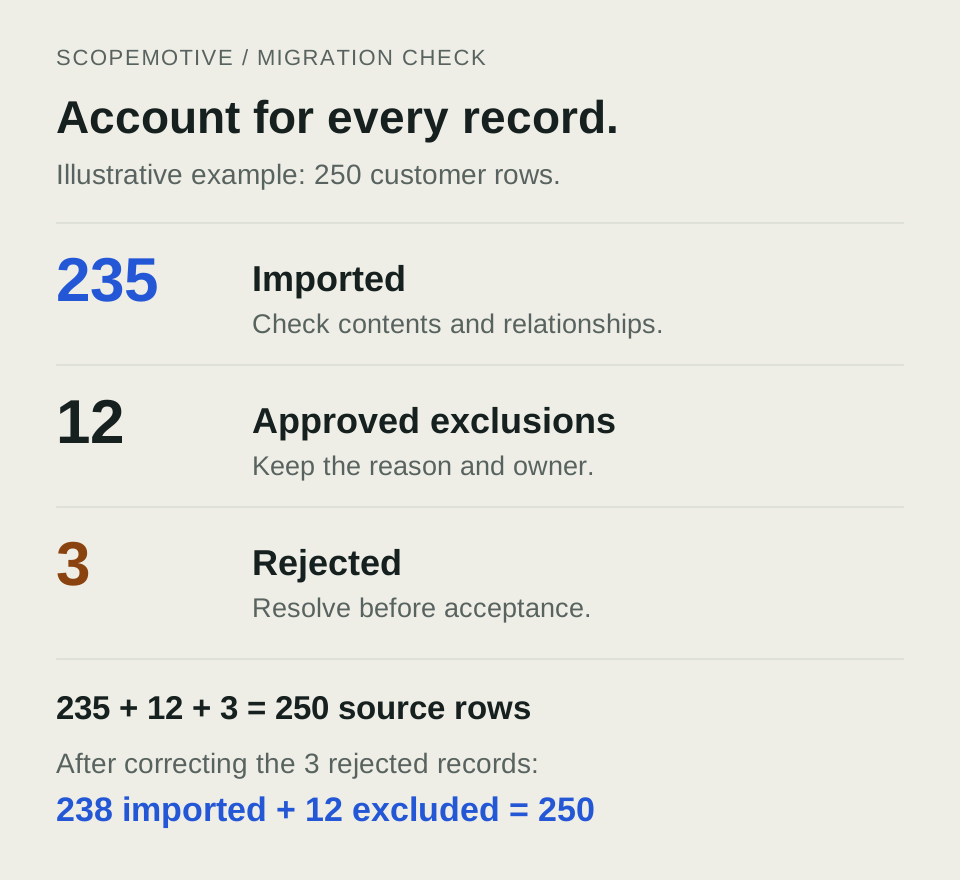
Here is a fictional count check for a customer file. There are 250 source rows. The owner has approved 12 rows for exclusion, 235 rows import successfully and 3 rows are rejected. The counts reconcile because 235 + 12 + 3 = 250, but the import is not ready for acceptance while those three required records remain unresolved.
After correcting and successfully importing those three records using the tested process, the accepted total becomes 238 imported and 12 approved exclusions. Keep the file versions and import results that explain the change. A matching count still needs the relationship and content checks above.
Count comparable things. A spreadsheet containing one row per order line cannot be compared directly with an ERP count of whole orders.
If financial balances are in scope, have the finance owner approve the migration method and reconciliation. Do not assume that importing both outstanding invoices and a summary balance is correct. They may represent the same amount twice.
ERPNext’s opening and closing guidance distinguishes open transactions, supporting schedules and remaining balances. The planning point is to account for each amount once and reconcile the detail, not just a grand total. Use the supported process for your chosen system.
For an operations tool that does not replace the accounts, agree which accounting records remain in the existing software. A new order dashboard does not need to become a second ledger.
7. Plan who enters work during the changeover
Choose the point when the new system becomes authoritative for each workflow. Record the final export time, who can edit the old files and how transactions arriving during the move will be captured.
For example, if orders continue arriving while the final file is imported, keep a controlled list of those orders with their original references. Reconcile that list before normal entry resumes. Integrations need an agreed starting point too, or the same orders may arrive through both a file and a synchronisation job.
Avoid leaving staff to decide independently which system to use. A short parallel reporting period can be useful, but entering new transactions into two systems needs explicit ownership and reconciliation.
Rehearse the changeover steps and record the time they take. That provides a better basis for scheduling disruption than an untested estimate.
8. Test recovery before you need it
Keep recoverable copies of the approved source, mapping files and destination before the final import. Confirm who can restore them and where the instructions are kept. The UK National Cyber Security Centre’s backup guidance recommends checking that important information is included and knowing how to restore it.
A recovery plan also needs to cover work entered after launch. Restoring yesterday’s database could remove today’s valid orders. Agree how those transactions would be identified, preserved and entered again before treating a restore as an available option.
Name the person who can pause the rollout and the conditions that would trigger that decision. An unresolved mismatch affecting active orders is different from a cosmetic issue in a report.
Pause the changeover if required records are still rejected, relationships or relevant totals disagree, staff cannot complete the agreed workflow, or recovery has not been demonstrated. Record who approves any exception and how affected work will be handled.
A worksheet for the handover meeting
Use this as an agenda with your developer and the people who own the records. Record the answer, responsible person and evidence for each item.
| Decision | What needs to be recorded |
|---|---|
| Workflow boundary | The work moving into the ERP and what remains elsewhere |
| Source ownership | Approved files, versions and business owners |
| Record identity | Stable references and duplicate decisions |
| Field mapping | Meanings, formats, units, statuses and blank values |
| Rehearsal | Test results, rejected rows and repeat import behaviour |
| Acceptance | Counts, relationships, quantities and relevant financial checks |
| Changeover | Final export, new transaction ownership and integration starting points |
| Recovery | Restore evidence and treatment of work entered after launch |
| Staff handover | Trained users, access roles, instructions and issue owner |
Do not mark an item complete just because somebody expects it to work. Link to the checked file, report or test result.
How the workflow changes the migration plan
In Mohsin Traders ERP, enquiries, quotations, purchase orders, delivery documents, invoices and receipt posting form a connected sequence. For a workflow like this, migration checks need to establish which documents belong together.
Artxpress ERP combines online and manual orders with fulfilment, courier cash collection and raw material tracking. For that kind of business, product designs and physical production materials need separate treatment.
These delivered workflows help explain why a migration plan needs to reflect the records a business uses. The checklist above is general planning guidance; the exact import process depends on the destination system and approved scope.
Test one enquiry through to invoicing
For a wholesaler, take a representative enquiry through quotation, order, delivery and invoicing in a test environment. Try a partial delivery and check that staff can see which quantities shipped, which are still outstanding and which were invoiced. Ask the people who handle orders and accounts to agree the expected result before the rehearsal.
Prepare the first conversation
Bring an anonymised sample workbook, a list of the files currently in use and one example of a job your team needs to continue in the new system. Include a difficult record as well as a straightforward one.
Explain which information staff trust today and where they already have doubts. That helps separate data cleanup from software development before a proposal is agreed.
Ask the proposal to separate data cleanup, import development, rehearsal, final migration and staff support. Agree how many rehearsal rounds are included and what happens if the source files change after approval. These details are more useful for comparing migration quotes than a promise to “import your spreadsheets”.
Discuss your ERP workflow with ScopeMotive, or explore our business software work.